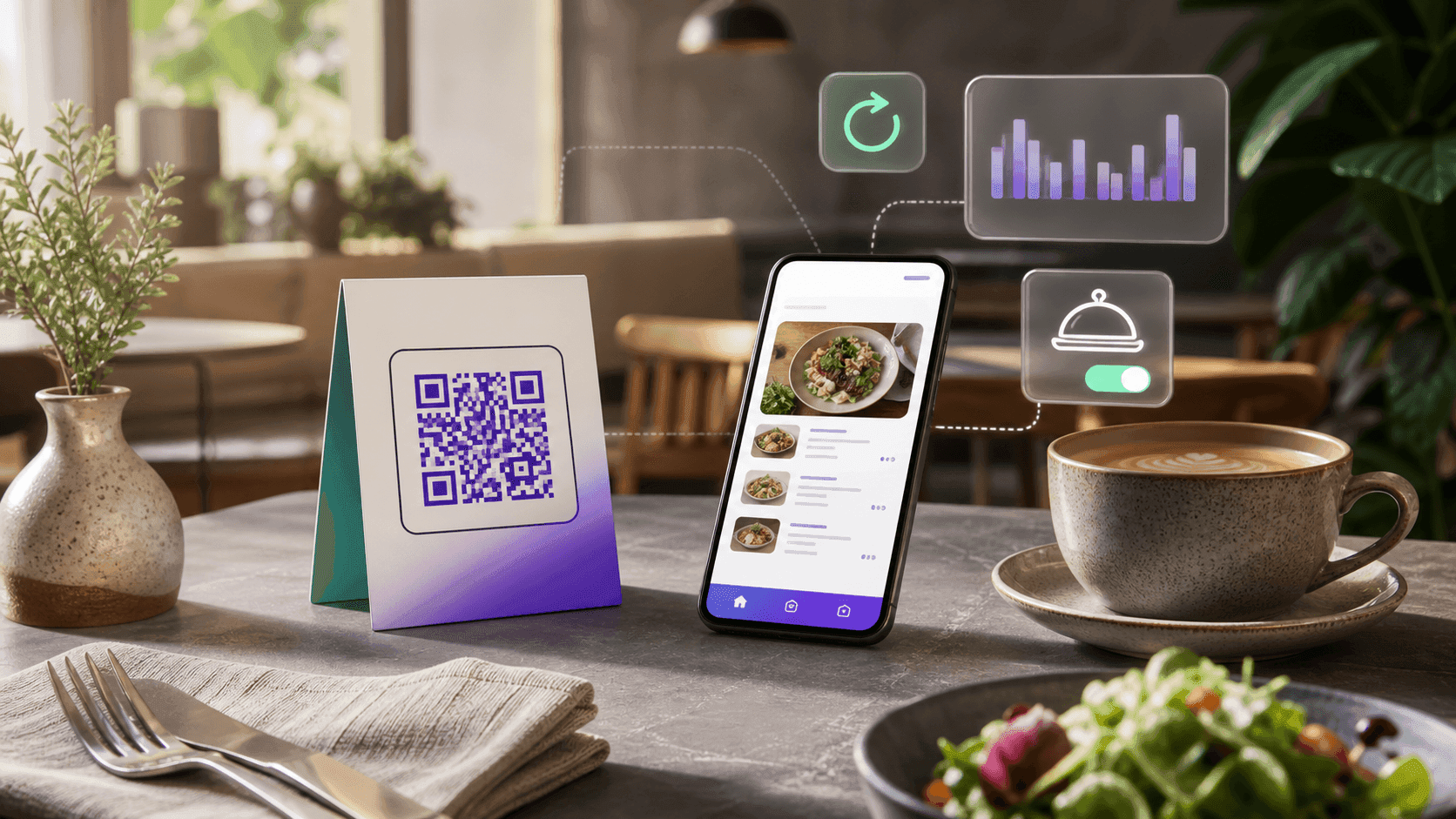
A QR code menu lets guests scan a small square on the table and open your menu on their phone — no app to download, no thick laminated cards to reprint every time a price changes. It is one of the cheapest upgrades a restaurant, café, food truck or bar can make, and you can set it up yourself in about ten minutes for free.
This guide walks through exactly how to do it, what to avoid, and how to update the menu later without reprinting a single sticker.
Static vs dynamicStatic vs. dynamic QR menus (this choice matters)
There are two kinds of QR codes, and picking the wrong one is the single most common mistake:
- Static QR code encodes the destination directly. If your menu link ever changes — a new PDF, a seasonal update, a different host — the printed code is dead and you have to reprint everything.
- Dynamic QR code points to a short link you own, which redirects to your current menu. You can change where it goes at any time, and the printed code keeps working forever. Dynamic codes also let you see how many people scanned, when, and on what device.
For a restaurant menu you almost always want a dynamic code. Prices, specials and seasonal items change; your printed table tents should not. Before you print, run the one-minute expiry test on whichever generator you used — a menu code that stops forwarding when a trial ends is the most common QR failure in hospitality. The general rule behind that — choose by the cost of being wrong after printing — is worked through in static vs dynamic QR codes. Canva users should also verify what happens to a Canva QR code after it is printed before producing a full batch.
What you needWhat you will need
- Your menu as a web page or a hosted PDF (a link a phone can open).
- A free QR Code Generator that supports dynamic codes.
- Five minutes and a printer (or a local print shop for nicer table tents).
If you do not have a menu link yet, the fastest option is to upload your menu PDF to any free host (Google Drive with a public link works) or use a simple one-page menu site. Our PDF QR code guide covers the sharing setting that most often breaks these links and how to keep the file under 2 MB. You can swap this link later without touching the printed code — that is the whole point of a dynamic QR.
Step by stepStep-by-step: make the QR menu
- 01Open the QR Code Generator. Choose the URL / link type and paste your menu link.
- 02Save it as a dynamic code. This is what lets you edit the destination later. The code is saved to your QR Codes Tracker so you can manage it.
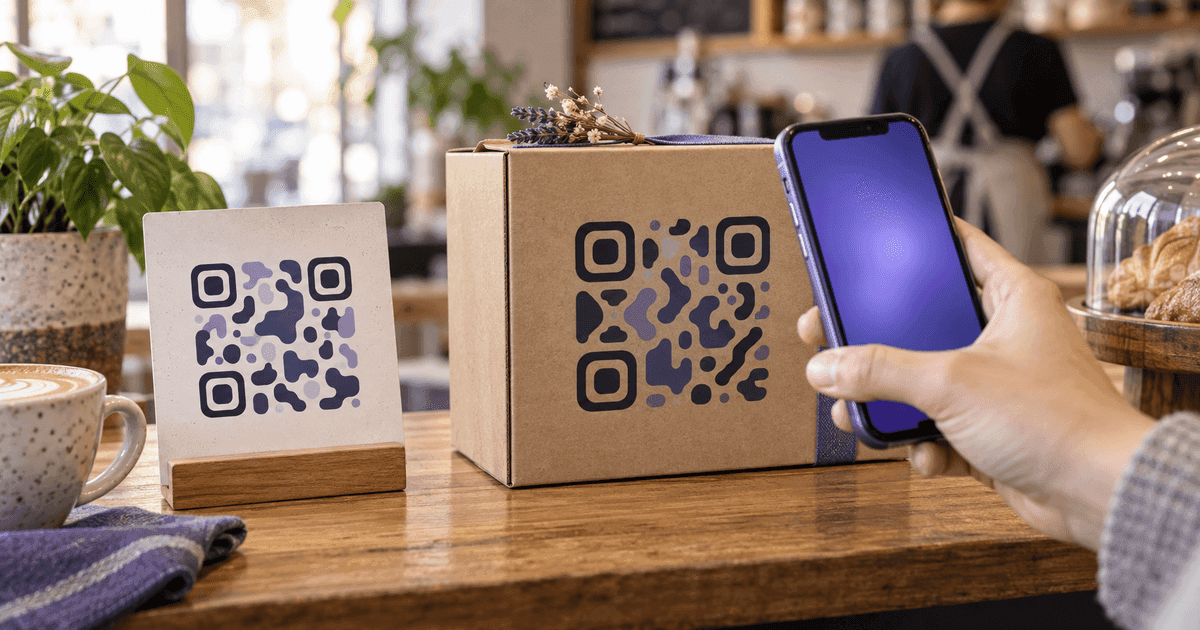
- 03Brand it. Set your restaurant's colors, add your logo in the center, and pick a dot style that still scans cleanly. Keep enough contrast — dark code on a light background scans best.
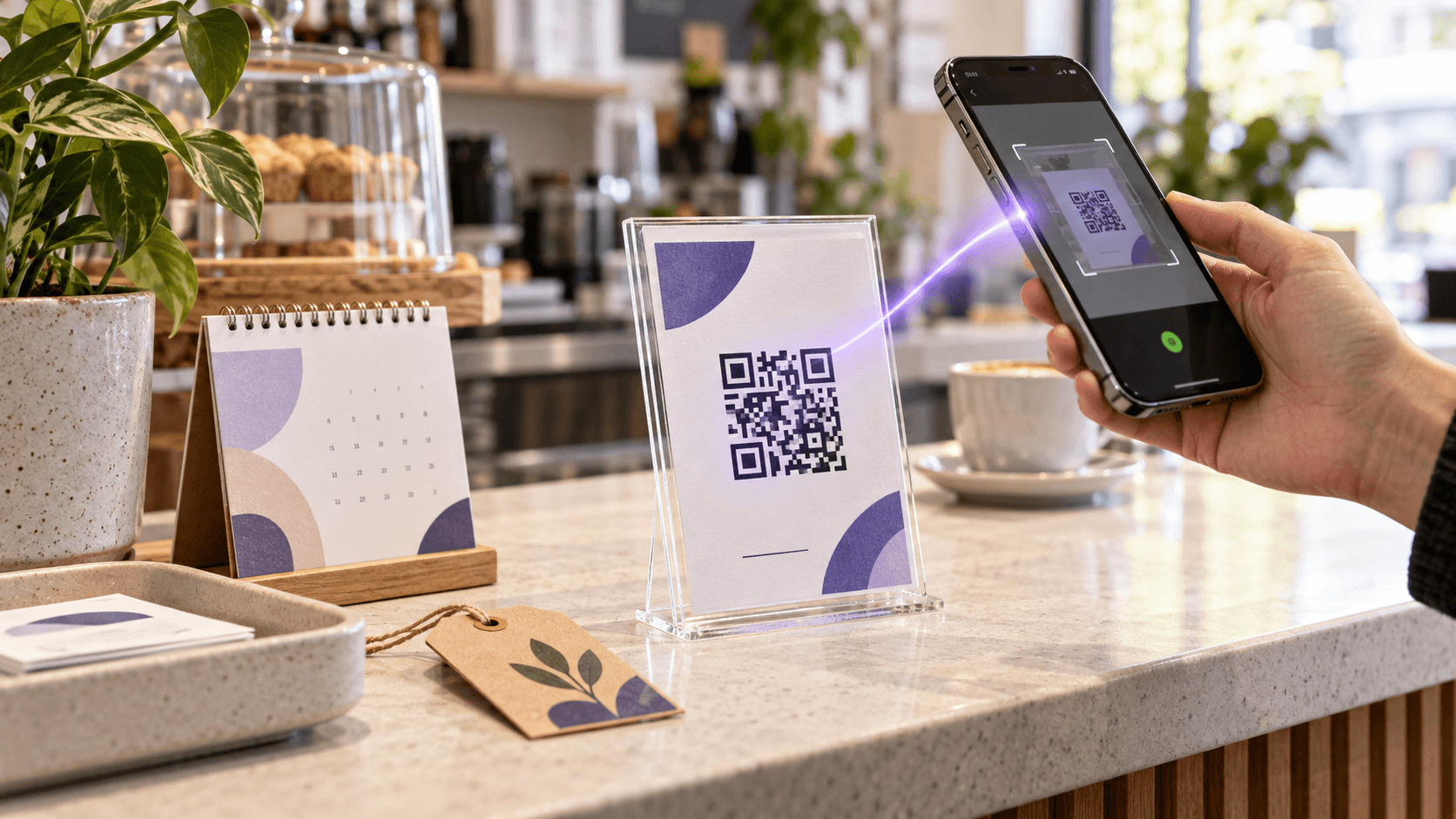
- 04Test before you print. Scan it with two or three different phones (iPhone and Android) from about arm's length. It should open your menu instantly.
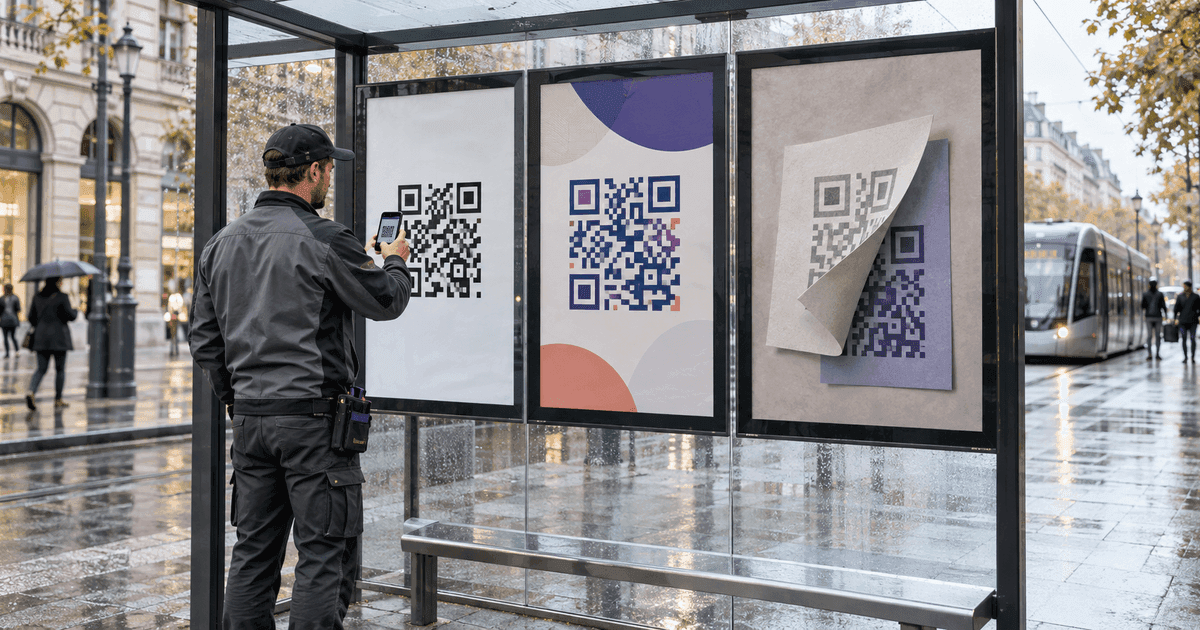
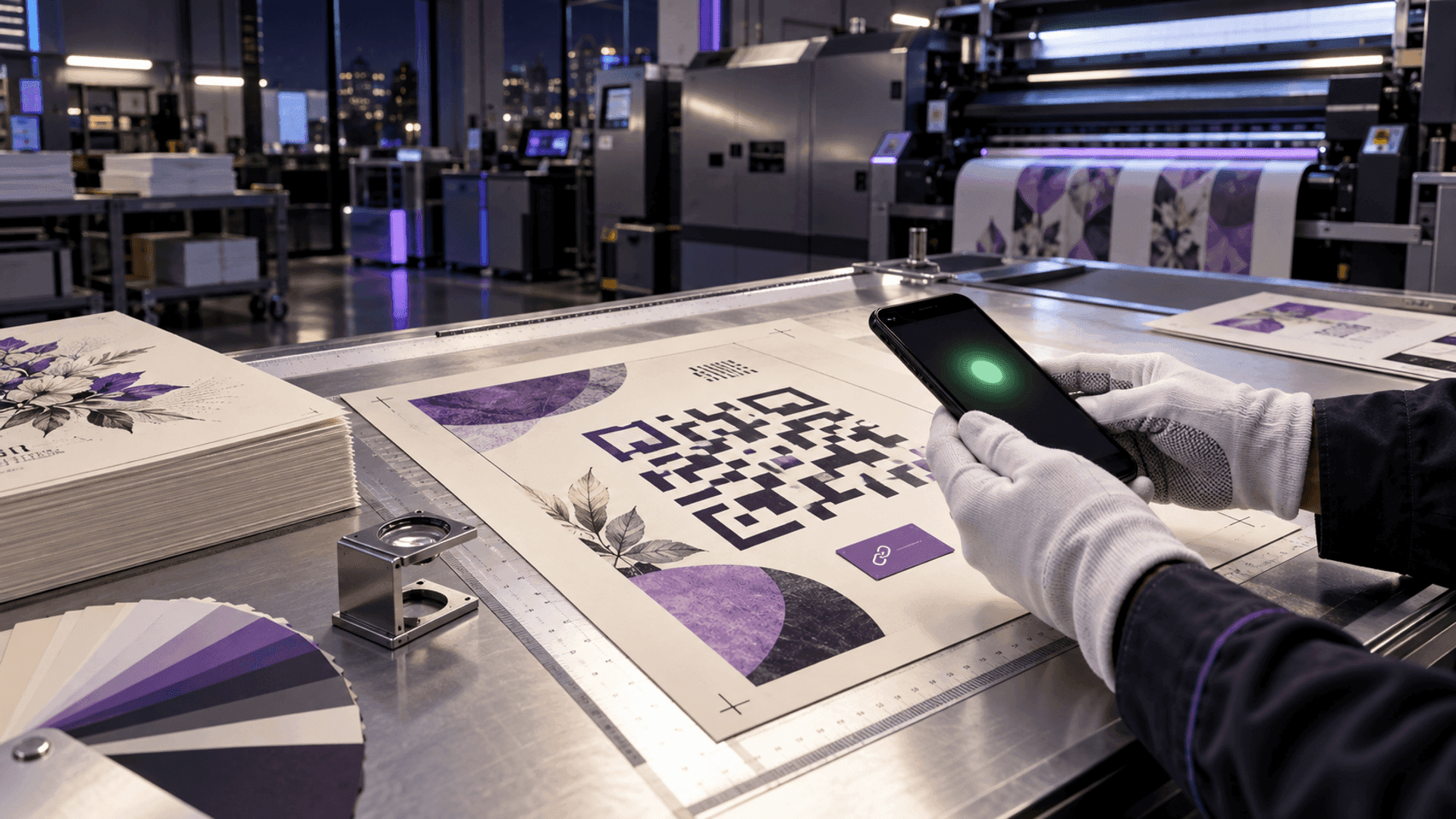
- 05Download the high-resolution PNG and place it on table tents, the front door, the counter, receipts, or a window sticker. (The printed receipt is its own document — our restaurant receipt template covers what has to be on it.)
DesignDesign tips that keep it scannable
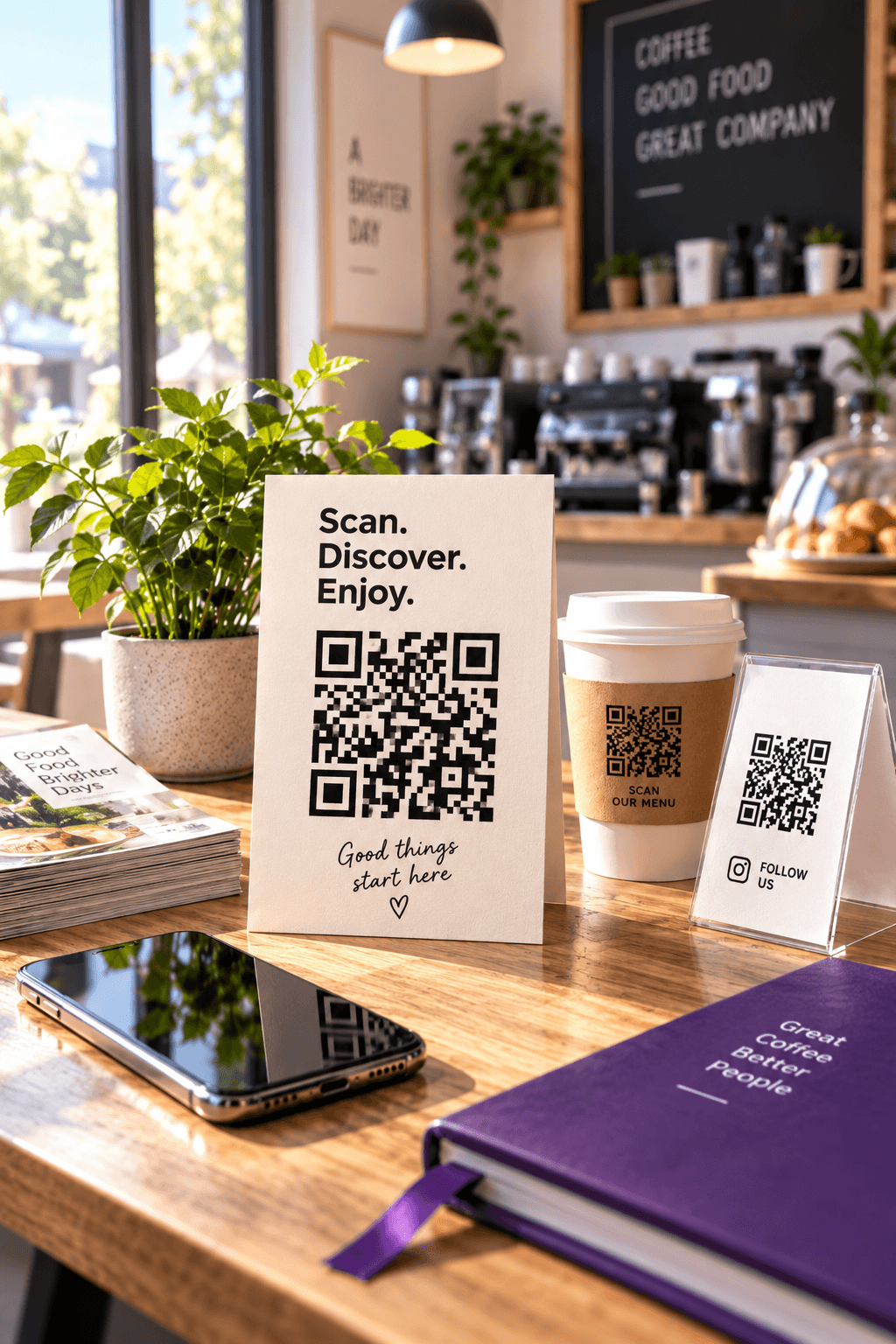
- Size: on a table tent, keep the code at least 1.2 inches (3 cm) square. Bigger is better for a code across the table.
- Contrast: dark foreground, light background. Avoid light-on-dark or busy photo backgrounds behind the code.
- Quiet zone: leave a clear margin of empty space around the code — do not crop it tight to text or a border.
- A short instruction: add "Scan for our menu" under the code. First-time guests appreciate the nudge.
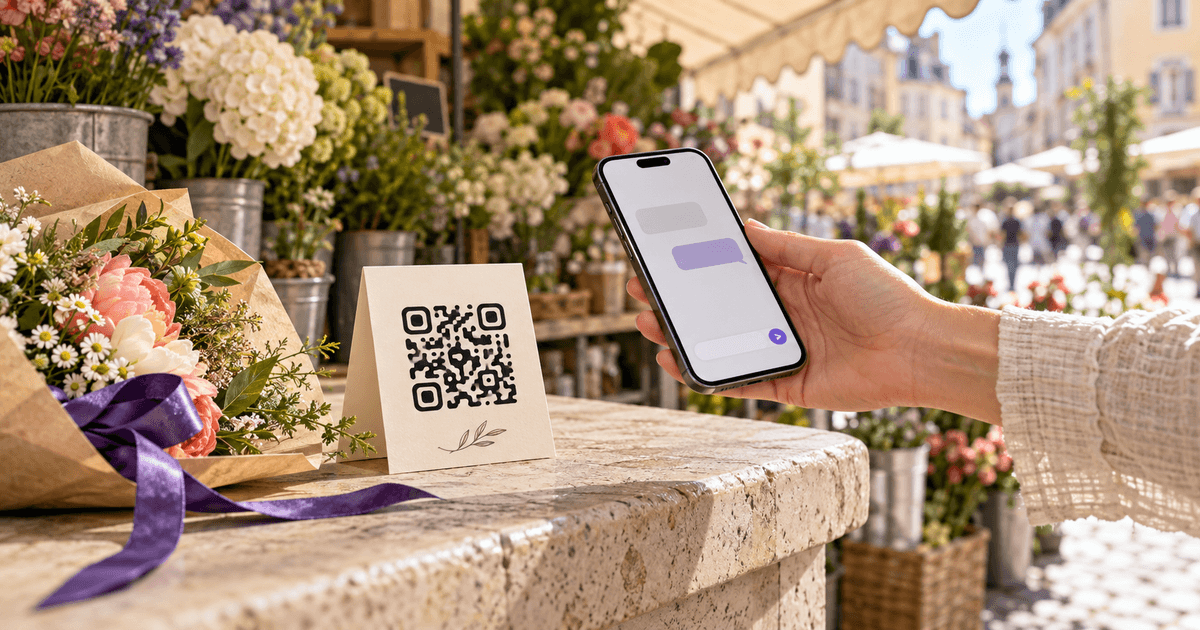
- The Wi-Fi beside it: the same table tent is the natural place for a Wi-Fi QR code — one scan to join the guest network, no password read out across the counter.
- Logo, not clutter: a centered logo is fine; heavy gradients over the whole code can hurt scanning. Always test after styling.
The real advantageThe real advantage: change the menu without reprinting
Because the code is dynamic, updating your menu is a two-minute job:
- Open your QR Codes Tracker.
- Edit the destination link — point it at the new menu, a holiday special, or a temporary "we're out of X today" note.
- Every printed code instantly reflects the change. Nobody reprints anything.
This also means one code can do double duty: a happy-hour menu in the afternoon, dinner menu at night — just repoint it on a schedule.
BonusBonus: see what your guests actually do
Dynamic codes track scans. In the tracker you can see the scan trend over time, roughly what days and hours are busiest, and the device split. It will not tell you who scanned — it is anonymous — but it is a free signal for how many people are reaching your menu and when, which is more than a laminated card ever gave you.
FAQFrequently asked questions
Do guests need to download an app to scan it? No. Every modern iPhone and Android opens QR codes straight from the camera. That is the beauty of it — zero friction for the guest.
Is a QR code menu really free? Making and printing the code is free. Our QR Code Generator creates it at no cost, and you own the printed asset forever. You only pay if you print professional table tents at a shop.
Can I change the menu after I have printed the codes? Yes — that is exactly why you use a dynamic code. Edit the link in the tracker and every printed code updates automatically. No reprinting.
What should the QR code link to? A mobile-friendly menu page or a clean PDF. Avoid linking to a slow, heavy site — guests are on phones and want the menu in one tap.
How big should the QR code be on a table tent? At least 1.2 inches (3 cm) square, with clear margin around it. For a code on a door or window that people scan from a few feet away, go larger.
Next stepReady to make yours?
Create your free, editable menu code now with the QR Code Generator, then manage it and watch scans in the QR Codes Tracker. Print it once — update the menu forever.